![knowledge-base-logo.png]](https://faq.thegogame.com/hs-fs/hubfs/knowledge-base-logo.png?height=40&name=knowledge-base-logo.png)
REQUIREMENTS
- 🎧 Headphones (Strongly recommended! Earbuds or AirPods are fine).
- 💻 A laptop or desktop with web camera or mobile device.
- 🤫 Quiet area away from other players or background noise.
- ❌ Close all other browser tabs and applications.
- 📡 A good internet connection.
- ✔️ Use the Chrome web browser.
- 🔓 VPN can be incompatible with the event. Plan accordingly.
DO I REALLY NEED HEADPHONES?
Unlike traditional video calls or conferences, your host will play music and videos, and you will spend very little time "muted". To prevent sound feedback and echoing for other players, everyone must use headphones. AirPods and earbuds are fine. Please have connected before logging in.
TROUBLESHOOTING
- Refresh your browser window.
- Use Chrome if you aren't already.
- Close all other applications & tabs.
- Try an incognito browser window.
- Disconnect from VPN.
- Reboot your device.
Need to know what domains need to be whitelisted to access Weve with a VPN or firewall? CLICK HERE!
To join a TGG Play event, participants can follow the steps that apply to their situation:
- Computer Web Browser (Preferred)
- Open the link in a browser and select “Quick Login”
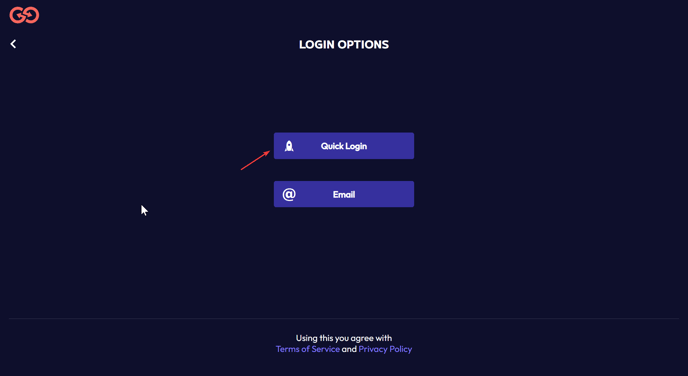
- Open the link in a browser and select “Quick Login”
-
- Enter your first and last name and submit
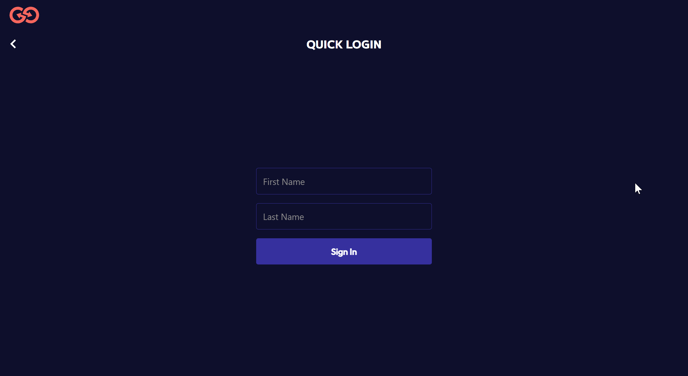
- Enter your first and last name and submit
-
- Participants receive a unique event link from their organizer that should bring them directly into the game
- If you don't have the direct link to the event, you can navigate to app.thegogame.com
and enter the four‑digit code provided by your host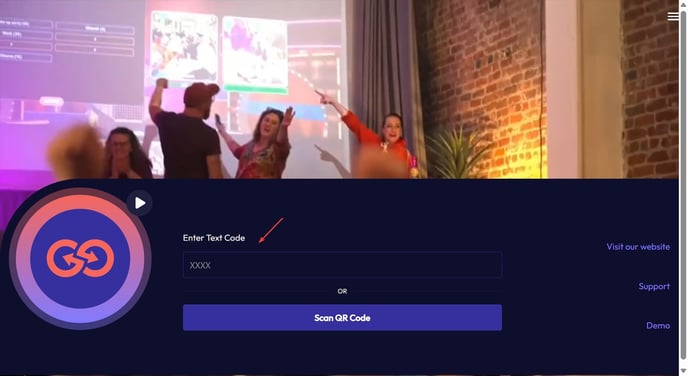
- If you don't have the direct link to the event, you can navigate to app.thegogame.com
- Participants receive a unique event link from their organizer that should bring them directly into the game
-
- Click "Play" and participants are taken directly into the event
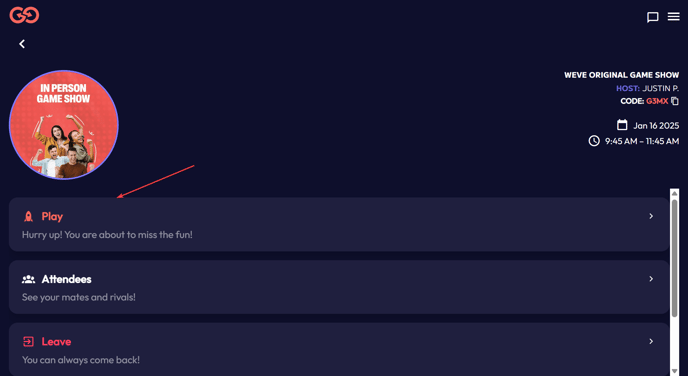
- Accept camera and microphone permissions if prompted. These permissions ensure that you can participate fully during the event
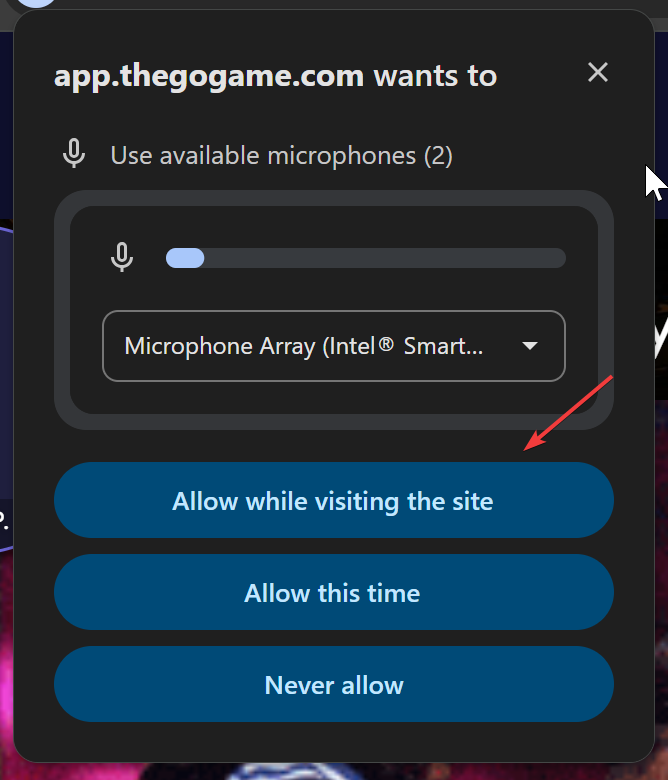
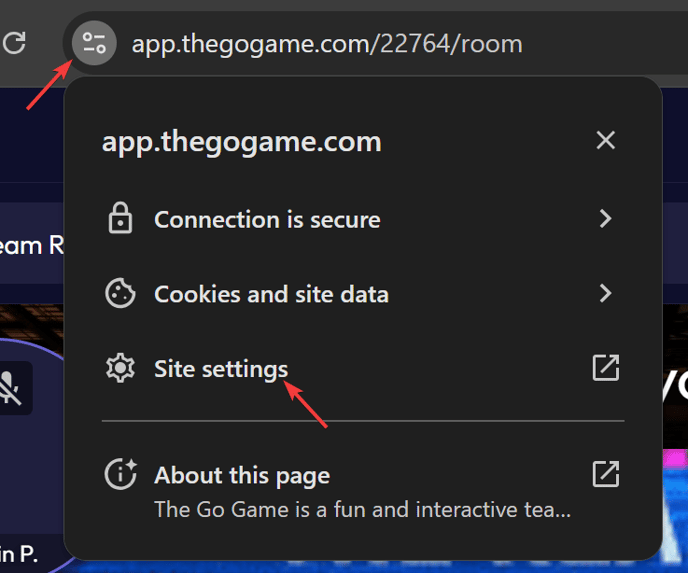
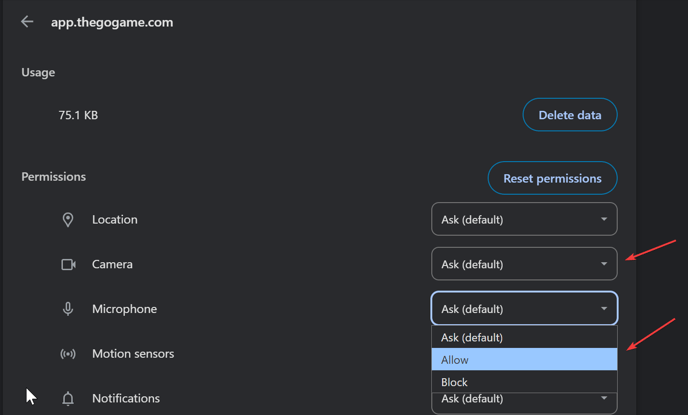
- The permissions closed/refused and people are able to still play without being able to be seen or heard. We don't encourage this because it removes interactivity from the event so to renable them, click the buttons in the screenshots below:

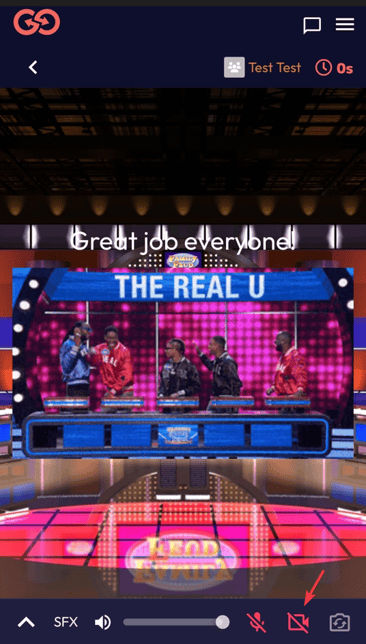
- If you're using a Mobile Phone browser, just clicking the camera and microphone icons should give the permissions pop up again:
.png?width=364&height=707&name=IMG_1127%20(1).png)
- Click "Play" and participants are taken directly into the event
- Mobile App
- Download the TGG Play app and open it
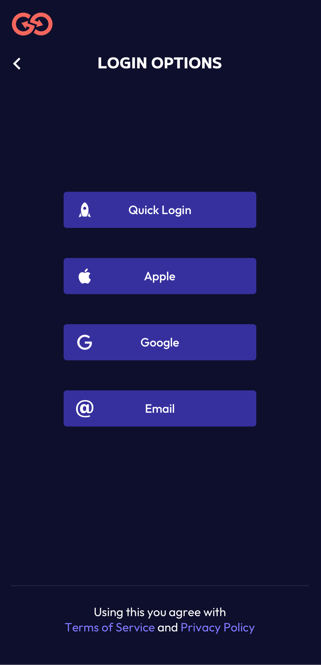
- Click “Quick Login”
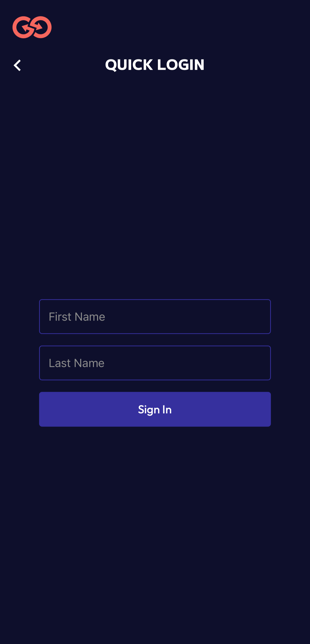
- Enter your first and last name and submit
- On the main page, enter the four‑digit event code provided by your host
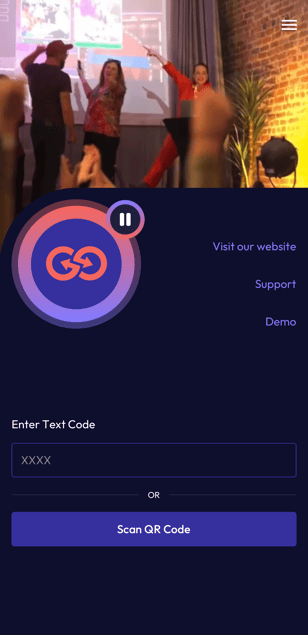
- Click "Play" and participants are taken directly into the event
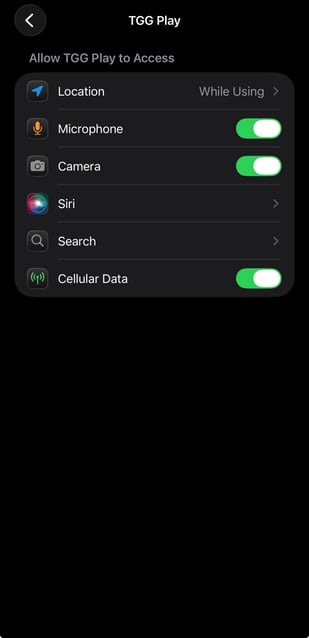
- You should have approved camera and microphone permissions upon opening the app but if they were denied, youll have to go into your phone's settings and enable them under the TGG Play App section:
Tip: These requirements are very similar to our Weve platform so for more tech help, see our complete troubleshooting list.